

/mcp. Connect your own AI to it and ask in plain words: it reads your agent, writes tasks and actions, builds cards and looks at pictures of them, runs the tests, chats with the agent as a customer and makes the change live. Each change is checked like a save on the desk and kept as a version you can compare and restore.
It’s the easiest way to edit with your own AI: nothing to clone or install, and the AI works on the live agent with the same checks the Agent page uses. And because your AI usually has your app’s code open too, it can do both sides of a job at once: the agent on the desk, and what your website needs (like identifying signed-in customers).
Connect
The quickest way is the MCP page in the desk’s sidebar: pick your app (Claude Code, Cursor, Codex or Others) and press its one button. It creates an API token named after the app and then copies the command or configuration, or for Cursor opens Cursor’s install prompt, with your address and the token filled in. The token is listed on the page’s API tokens tab, where you can revoke it. Its value is shown only there, once. To set it up by hand instead:1
Create an API token
On MCP → API tokens, create a token. It acts as you, for this workspace’s agent only. Copy it: it’s shown once.The token has your role. An owner’s or admin’s token can change things; a teammate with the agent role gets a token that can only read.
2
Add the server to your AI
Your MCP address is your desk’s address plus Then
/mcp, like https://support.acme.com/mcp.- Claude Code
- Cursor
- Codex
- Claude Desktop
claude mcp list should show jun … ✔ Connected. After the desk is updated with new tools, run /mcp and reconnect to see them.3
Ask
Try: “What does our support agent do today? Anything broken?” Then: “Add a refund task that looks up the order with our orders API (here’s the curl command from our docs: …), test it, and make it live.”
What your AI can do
When it connects, your AI gets a short guide to how the agent works and its rules, plus about 60 tools. The tool reference lists every one with its arguments. In short:Some things to ask
- “What does our agent do today? Anything broken?”
- “When someone asks to cancel, offer the annual discount first, then hand off. Add a test for it.”
- “Here’s our orders API:
curl https://api.acme.com/v2/orders/1042 -H 'Authorization: Bearer sk_live_…'. Make an action that looks up an order, try it with order 1042, and show the result as a card.” - “Start from the flight tracker template for our delivery tracker. Show me a picture in dark mode.”
- “Show me the chat widget in our brand teal on a dark page before you change anything.”
- “Change the greeting to ‘Hi! Ask us anything.’ and close on Sundays.”
- “Run the tests. Fix what fails, but show me the change with a dry run first.”
- “What changed in the agent since yesterday? Put the refunds task back the way it was in version 31, and leave the rest.”
- “Can the AI answer ‘do you have an EU data center?’ from our docs? If not, add our security page.”
- “Our returns policy document is out of date: here’s the new text. Replace it.”
- “Let signed-in customers upgrade their plan from the chat.” (see the full example)
How a change goes live
Your AI works on the live agent. There’s no separate draft: each change is one new version, and customers get it as soon as it’s saved.1
It reads first
get_agent shows everything at once; the AI reads the files it’s about to change. Before writing a task that answers a question, it runs search_knowledge: if the knowledge already has the answer, no task is needed.2
It changes only what it must
The typed tools (
create_task, update_action, update_widget, …) change only the fields they’re given, and keep comments and anything else in the file. write_file is there for the rest.3
Every change is checked
The files are checked like a save on the Agent page. With problems, nothing is saved: the AI gets each file and what’s wrong, and fixes it. Warnings (an action whose key isn’t stored yet, a card button that leaves out an input its action needs) are saved with the change and shown to the AI.
4
It can look before saving
dryRun: true on any change shows the resulting file without saving it. run_tests and test_chat take files to test unsaved changes. preview_widget and preview_chat draw unsaved cards and settings.5
Saved and live
A saved change is a version in History, marked Changed by an AI (MCP) with whose token it was.
diff_versions shows what changed, and restore brings back an old version, or just some of its files, as a new version.Pictures
Your AI can see what customers will see:preview_widgetdraws a card the way the chat does, in light or dark, with its buttons live. It works on saved cards, unsaved files, named states and any data you give it.preview_chatdraws the chat widget on a desktop-sized website: the island, the chat window with its greeting card, or the round button, closed or open, on a light or dark page. Pass unsavedchatsettings to see a new colour, mode or greeting before saving.
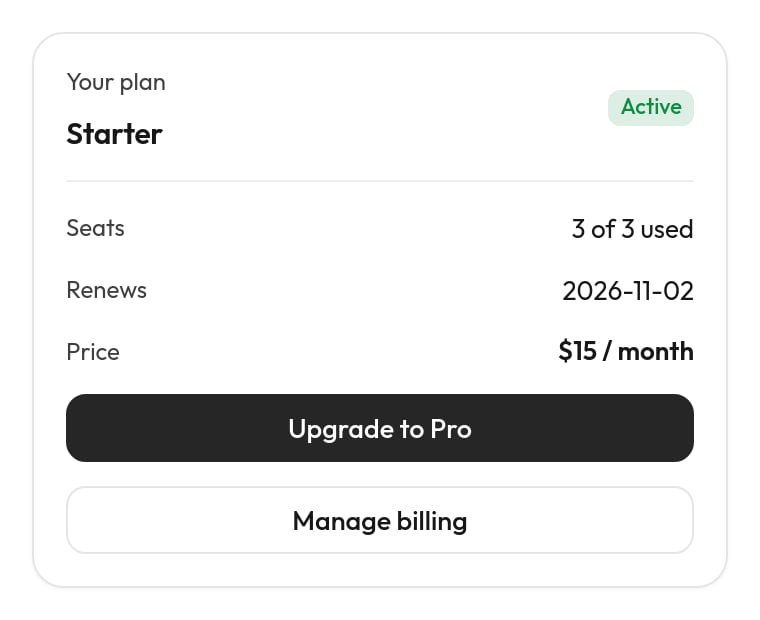
What preview_widget gives your AI: the card as customers see it, buttons and all.
/shot page in a headless browser and takes a screenshot. The card or settings travel in the page’s address fragment, which never reaches a server or its logs. Nothing is saved.
- Pictures need the
BROWSERbinding, which new desks have inwrangler.jsonc. No API token is needed. Browser Run’s free allowance (10 minutes of browser time a day on the Workers Free plan) is plenty for previews. - A desk running on your own computer (
npm run dev) gets no picture: Cloudflare’s browser can’t reachlocalhost. The tools still answer with the outline and problems, and say why there’s no picture. - An AI client that can’t show images still gets the text: what each control does, and the problems.
Good cards
Cards your AI writes from nothing tend to look like it. So the MCP gives it a way to start well:- Templates.
widget_templateslists ChatKit Studio’s gallery. Passforwith what the card shows and the closest come first. - A design guide.
jun://guide/widget-designgives the loop and the rules, learned from the gallery: one thing the eye lands on first (a big number, a coloured band, a picture or an icon on a tile), rows grouped on soft surfaces, colour that carries the status in light and dark, one main pill button in your brand colour. - Its own eyes. After each change,
preview_widgetreturns a picture in light and dark and for each named state. Your AI is told to look before it calls a card done.
Long runs
run_tests and test_chat call the real AI and can take a minute or more. If your client accepts streamed answers (Claude Code, Cursor and Codex do), the desk sends progress as it goes (“PASS refund goes to a person”, “AI reply 2 written”) and a keepalive every 15 seconds, so the call isn’t timed out. Clients that only take JSON get the same answer at the end.
Set up identity with your AI
Actions that act on the customer’s own account use{user.id} (or {user.email}, {user.plan}, {user.secrets.API_TOKEN}). They run only for customers your website has identified: your server signs a short token saying who’s signed in, with a secret only your server and the desk share, and the desk checks it. Without that, every visitor is anonymous and those actions don’t run. That’s on purpose: if the page could just say who the customer is, anyone could type someone else’s id and act on their account.
Setting it up has two halves. Your AI can do both, because it can reach the desk over MCP and your app’s code:
1
Turn identity on (the desk)
set_identity with turn: "on" creates the identity secret and shows it once. Your AI puts it in your app server’s environment, like JUN_IDENTITY_SECRET in .env or your host’s secret settings. It never goes in a file you commit, in page code or in an agent file. get_identity says whether it’s on and which actions need it; reveal: true shows the secret again.2
Sign a token on your server (your app)
Your AI reads
jun://guide/identity and adds a small function that signs a token for the signed-in user: HS256, sub = your user id (it becomes {user.id}), exp an hour ahead, optional email, name, attributes (like plan), company (the account they belong to) and secrets. The guide has the code for Node, Python, Ruby and PHP.3
Pass it to the chat (your pages)
Server-rendered pages put the token on the snippet as
data-user-token. Single-page apps fetch it from your server after sign-in and call JunDesk.identify(token), and JunDesk.logout() on sign-out.4
Check it
Your AI runs your signing code (or a test that calls it) and hands the token to
check_identity_token. The desk answers exactly as the chat would: Accepted with what {user.id}, {user.email} and each attribute will be and the company it read, or the reason it’s refused (signature doesn’t match: the wrong secret; expired; needs a sub).{user.*} with try_action or test_chat and a pretend customer: { "id": "u_123", "email": "sam@acme.test", "attributes": { "plan": "starter" } }.
Example: a plan upgrade button
Here’s what one request can turn into: “Let signed-in customers upgrade their plan from the chat. Our billing API isPOST https://api.acme.com/v1/subscriptions with { customer, plan } and a Bearer key.”
1
Identity
get_identity shows it’s off, so the AI asks you, turns it on with set_identity, and adds the token endpoint and JunDesk.identify to your app (above).2
The key
It asks you for the billing key and stores it with
set_key as BILLING_API_KEY. The key never appears in a file or an answer.3
The action
create_action writes actions/upgrade_plan.yaml:{user.id} comes from the verified token, never from the chat, so the change can only ever go to the account that’s signed in.4
The card
create_widget makes a plan picker whose buttons run the action (tool:upgrade_plan with { "plan": "pro" }), following jun://guide/widget-design, and preview_widget shows you a picture of it, light and dark.5
The task
create_task writes the procedure: show the plans card, say exactly what changes (new plan, new price, from when), and only run @upgrade_plan after a clear yes. A card button press counts as that yes.6
Tests
add_test_case adds “I want to upgrade to Pro” → the card is shown and nothing changes before a yes. test_chat with a pretend customer chats through it and presses Pro; the POST is pretended. run_tests runs the whole suite.7
Live
With your go-ahead it’s saved. If anything goes wrong,
restore puts the previous version back.Knowledge
The websites and documents the AI answers from (the desk’s Knowledge page) have their own tools, which do exactly what the Knowledge page does with the same limits: list, read a source (a website’s pages, a document’s text), add a website or document, replace a document, re-sync, remove and search. Crawls and indexing run in the background; the AI checkslist_knowledge until a source is ready.
Anyone’s token can list, read and search; adding, replacing, re-syncing and removing need an owner’s or admin’s.
Safety
- Keys are write-only.
set_key(andaction_from_curl, for a key in the command) stores a key on the desk; no tool ever returns it. Files only ever say{secrets.NAME}, and answers mask keys a request carried. The identity secret is the one value the desk hands out, because your server needs it; it’s shown only to owners and admins, as on the dashboard. - Nothing broken is saved. Each change is checked like a save on the desk; with problems, nothing is saved and the AI gets them file by file.
- Every change is a version. History on the Agent page shows the AI’s changes as Changed by an AI (MCP), with who owns the token.
diff_versionsshows exactly what changed, andrestorebrings any version (or some of its files) back. - Look before it’s live.
dryRun: trueshows the result without saving.test_chatpretends POST actions unless you ask forreal: true.run_testswithmockTools: truedoesn’t call your APIs.try_actiondoes make one real call. - Changes customers feel need a yes. A POST action needs a task step that says what changes and waits for the customer’s clear yes. Removing knowledge and rotating or turning off identity need
confirm: true. - Only the agent, its knowledge and identity. A token reaches the agent’s config, its tests, the knowledge tools and identity verification, nothing else: not the inbox, conversations or contacts. Reading needs any teammate’s token; changing needs an owner’s or admin’s. Revoke a token on MCP → API tokens at any time.
How it works
- Transport. Stateless MCP over Streamable HTTP (protocol versions 2025-11-25, 2025-06-18 and 2025-03-26): each request is one JSON-RPC message, or a batch, sent with
POST. Answers are JSON, or a short event stream for long tools when the client accepts one. There’s no session;GETanswers405. - Auth.
Authorization: Bearer jun_…. A request without a valid token gets401withWWW-Authenticate: Bearer. Requests from a browser page on another site are refused by anOrigincheck. - Where it runs. Inside your desk’s Worker, on your Cloudflare account like the rest of Jun. Changes go through the same functions as the Agent page, the CLI and the Knowledge page, so all three always agree.
- Errors. A bad argument or a failed step comes back as a tool result marked as an error, with a sentence your AI can act on (“There’s no task refunds. list_tasks shows what there is.”).
Coming later: OAuth sign-in, for connectors in claude.ai and Claude Desktop without a bridge; and the desk settings the MCP doesn’t reach yet (the AI provider and logo uploads), which stay on the dashboard.
Tool reference
Every tool with its arguments.
Identify signed-in users
Tokens, claims and merging, in detail.